Phone: 02-839-7500
USAGE GUIDE

How to Use ANYSUPPORT

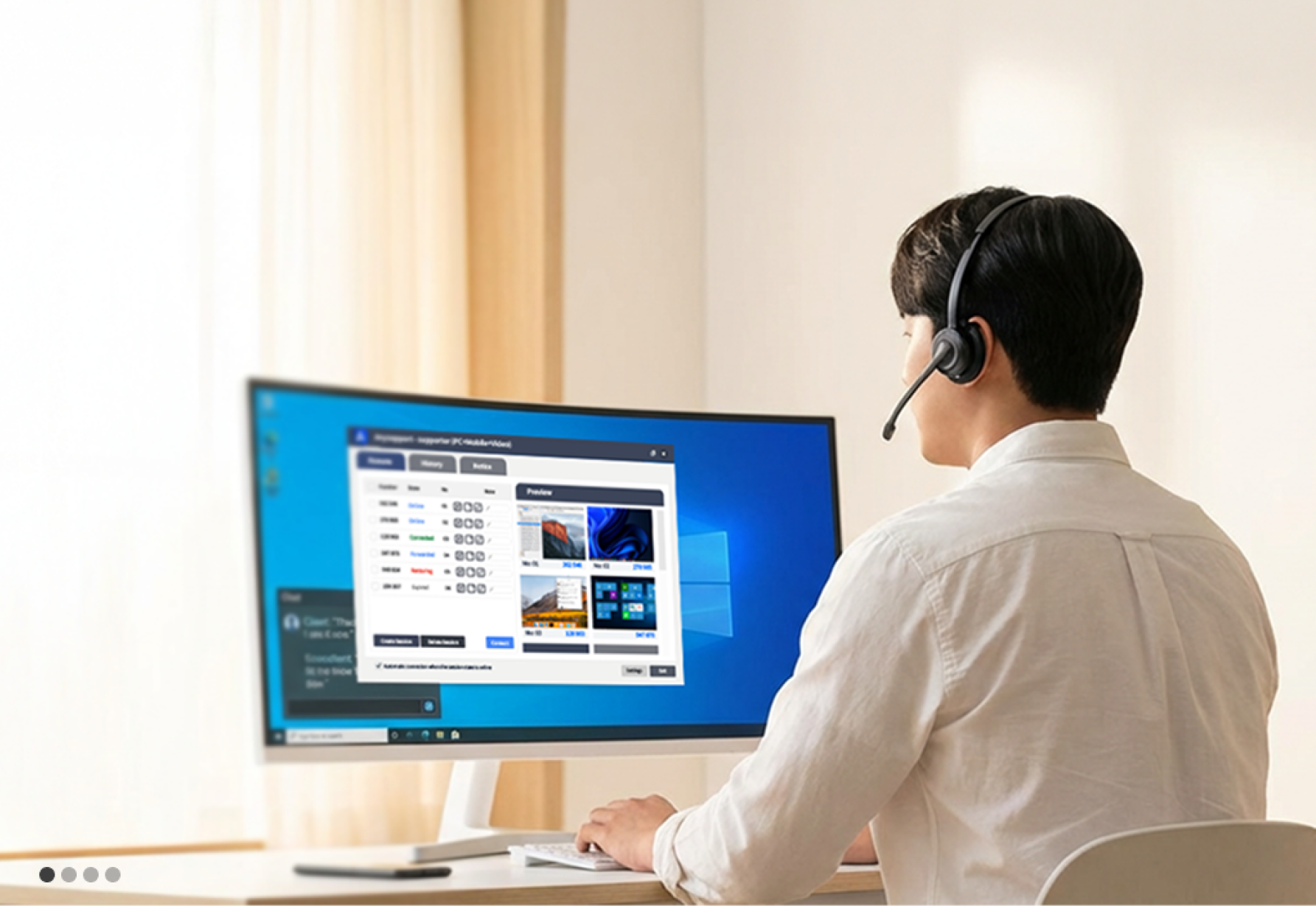
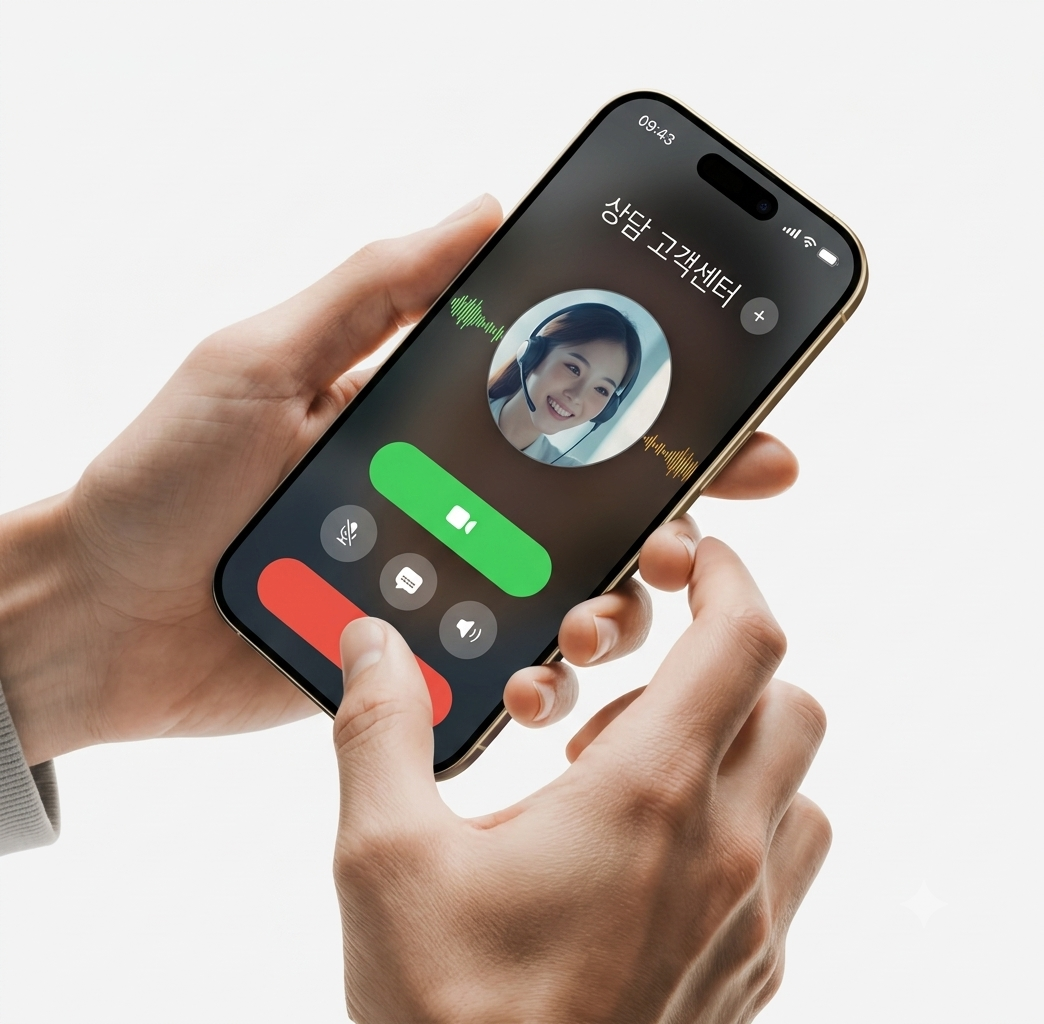
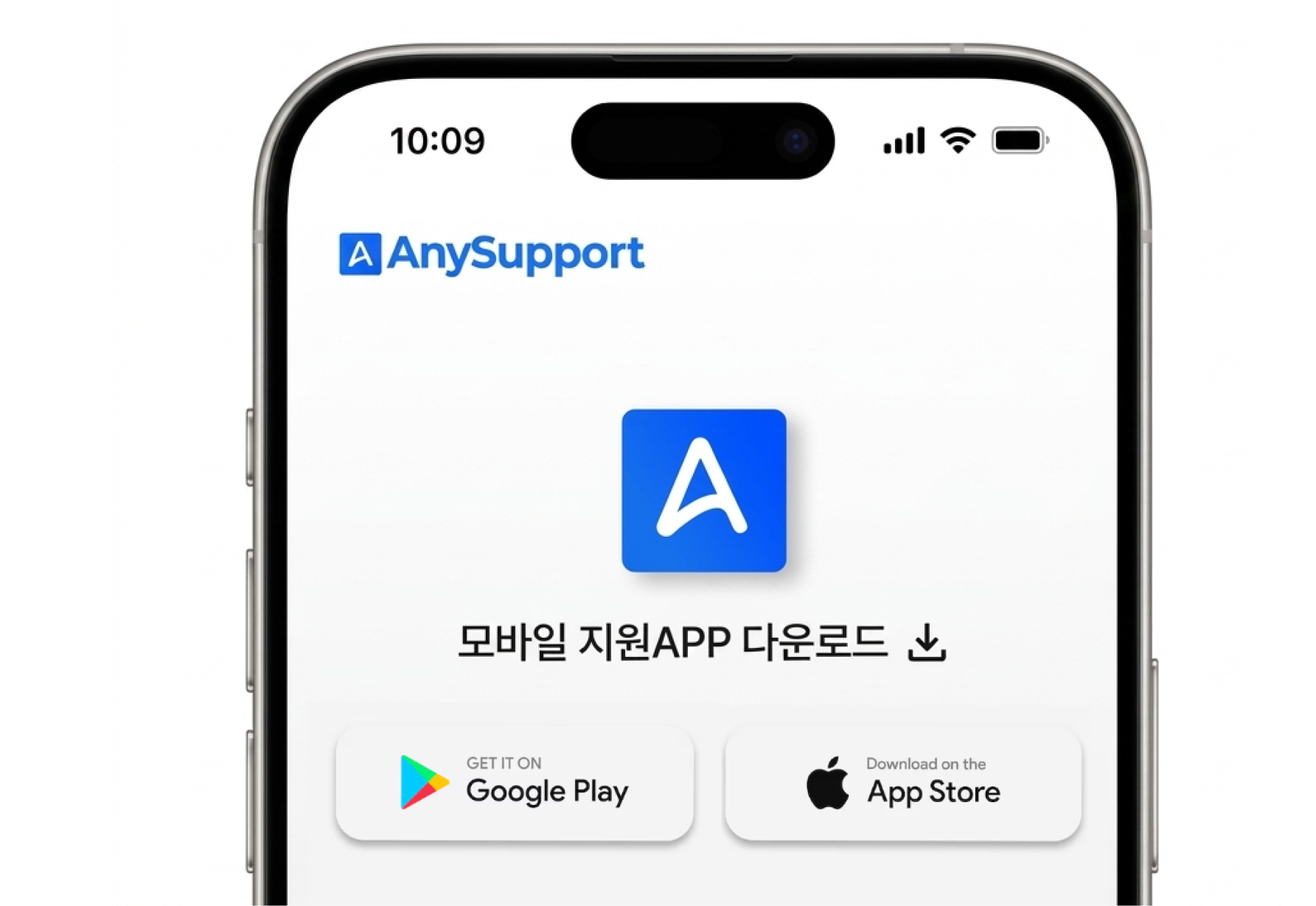
See at a glance the whole process of an agent supporting customers in three ways: PC, mobile, and video.

Step-by-Step by Product

Agent · Install PC program|Customer · No install (Web)|Windows · macOS · Linux
Agent
1

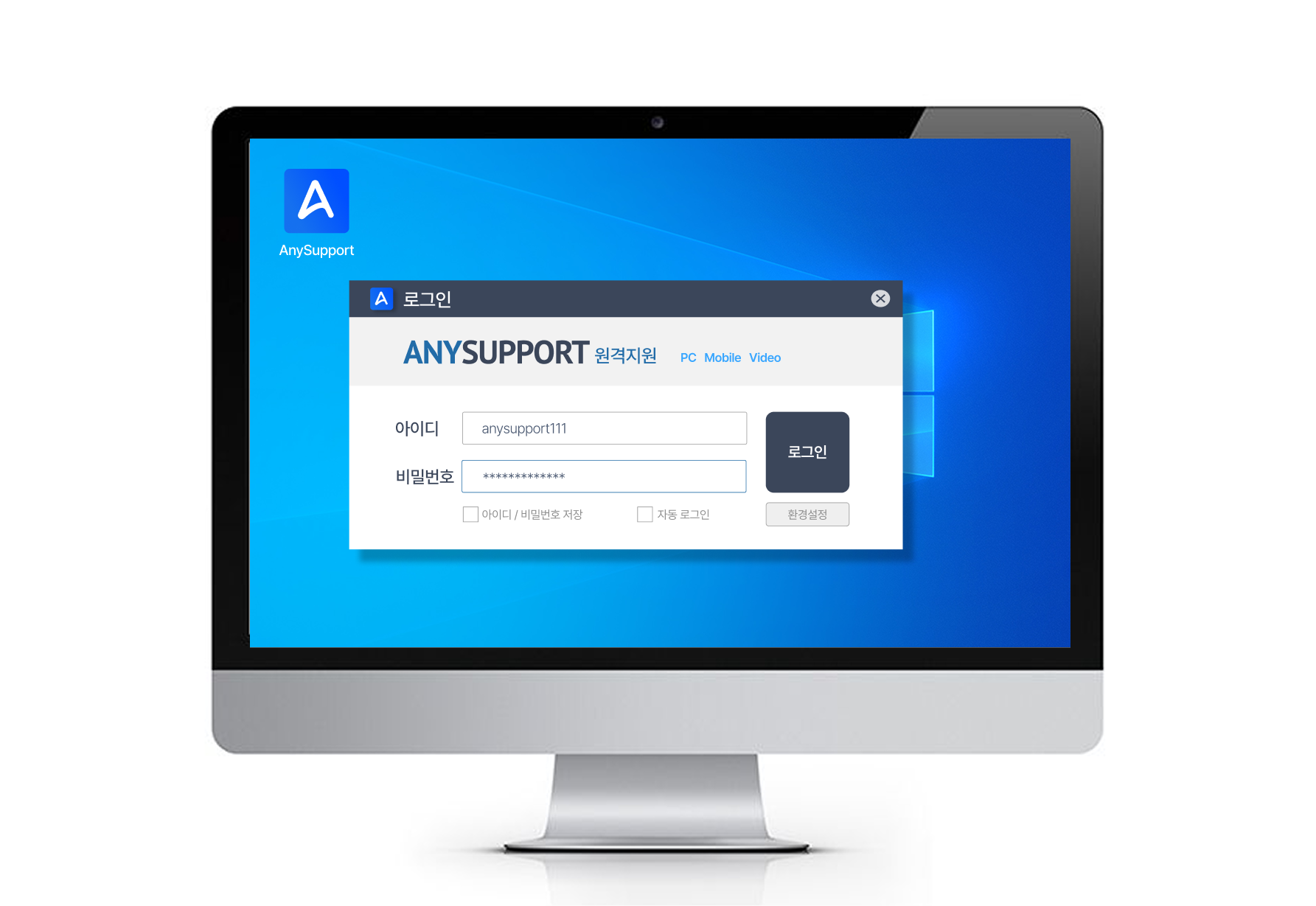
Agent login

Log in from the agent program or the website

2

Start a session

Generate an access code and send it with the URL

3

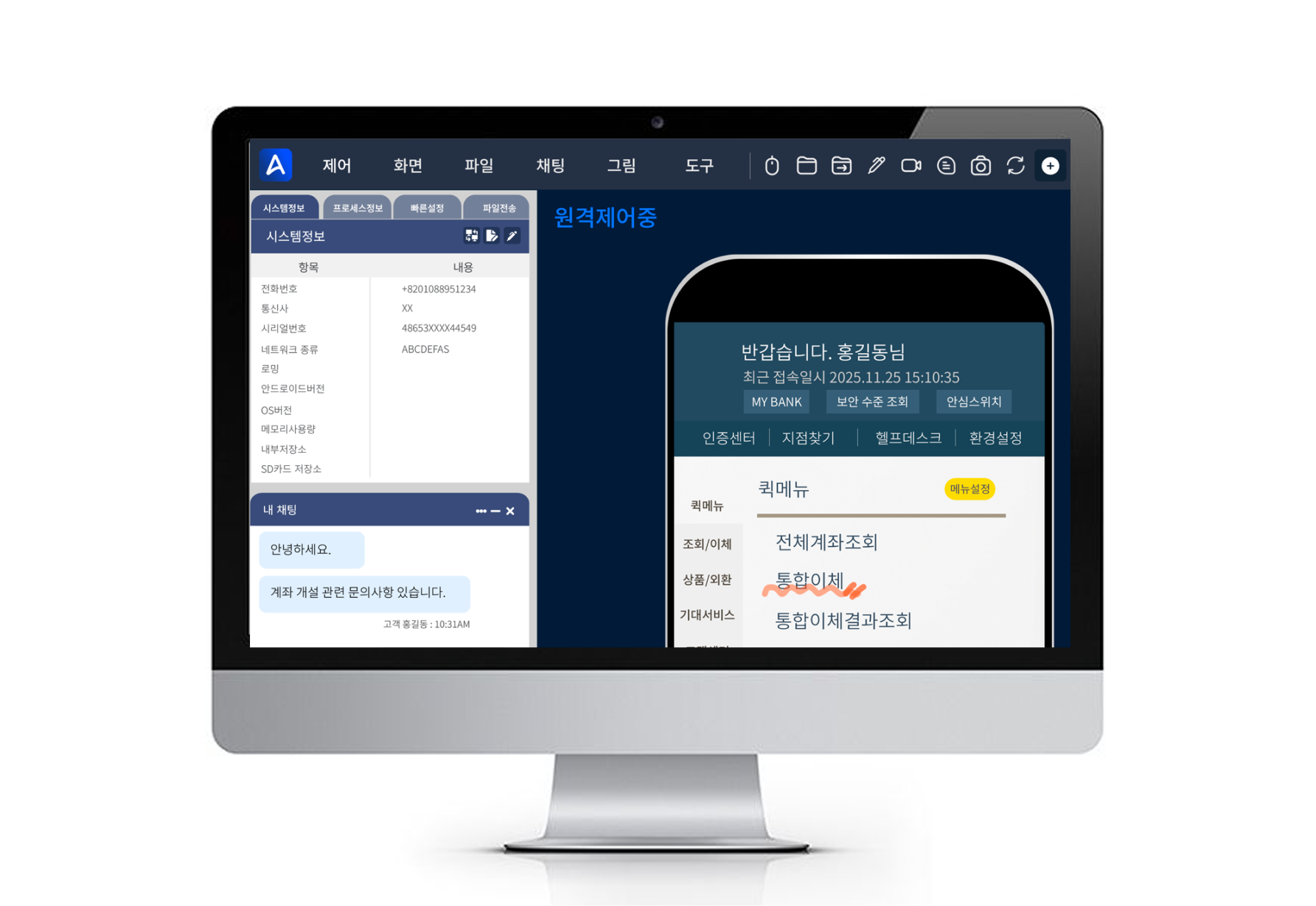
Start remote control

Connect to the customer's PC and provide support

One-time authentication code
******
6-digit code sent
Customer
1

Customer requests help

Contact via call center or help desk

2

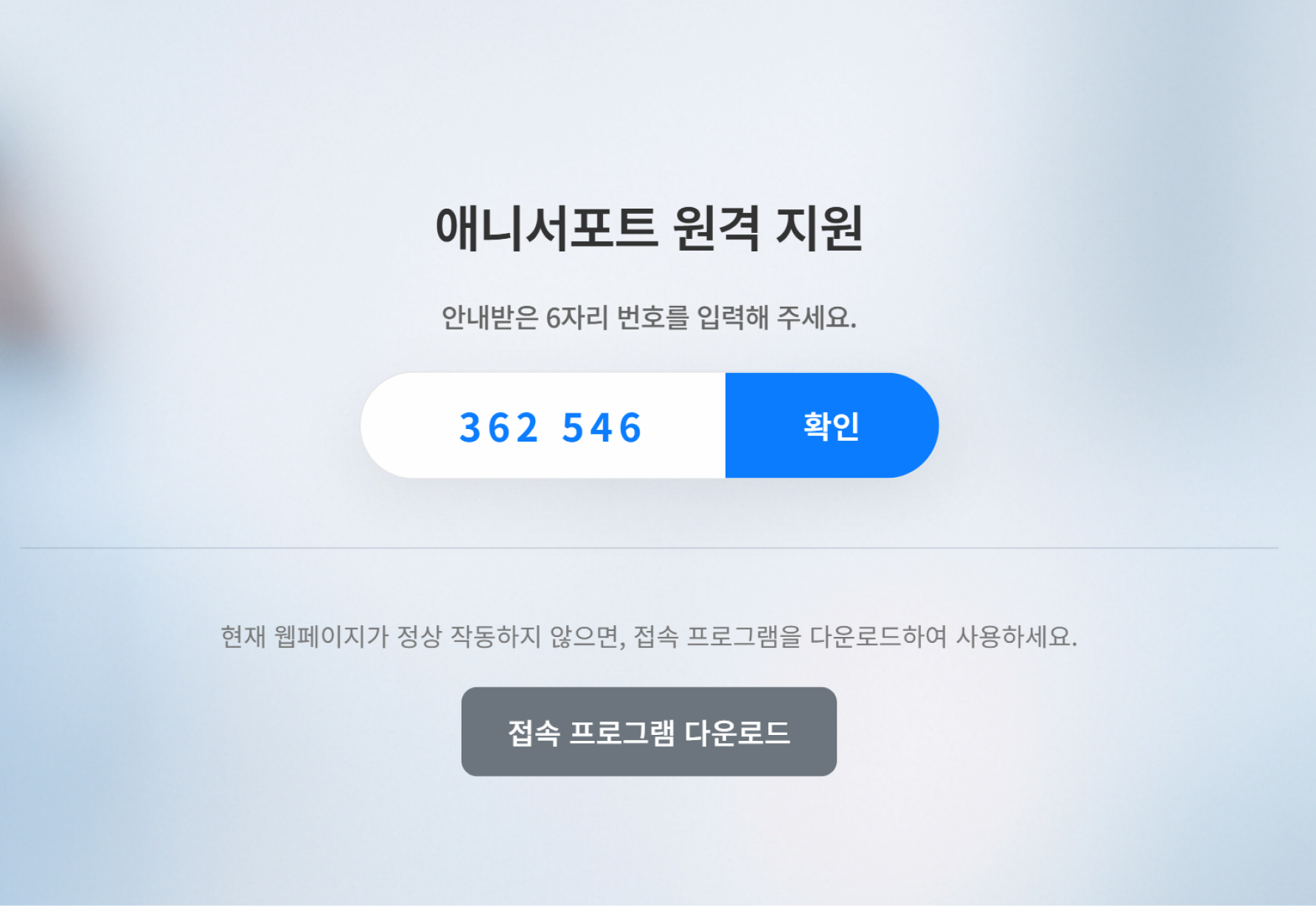
Open the access page

Go to 988.co.kr in a browser

3

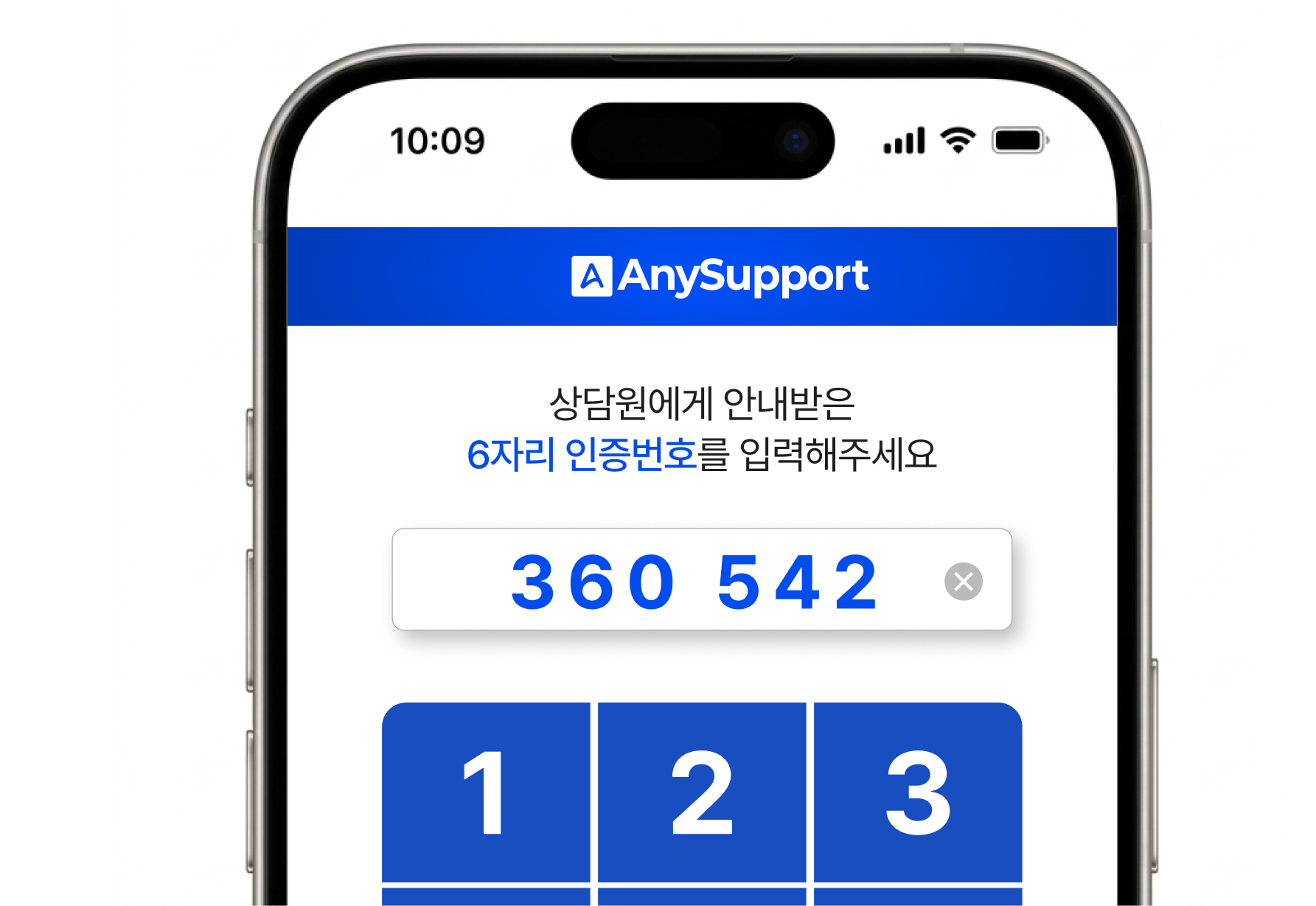
Enter the access code

Enter the 6-digit code you received

How the Remote Connection Works

Customer requests help
Customer
01

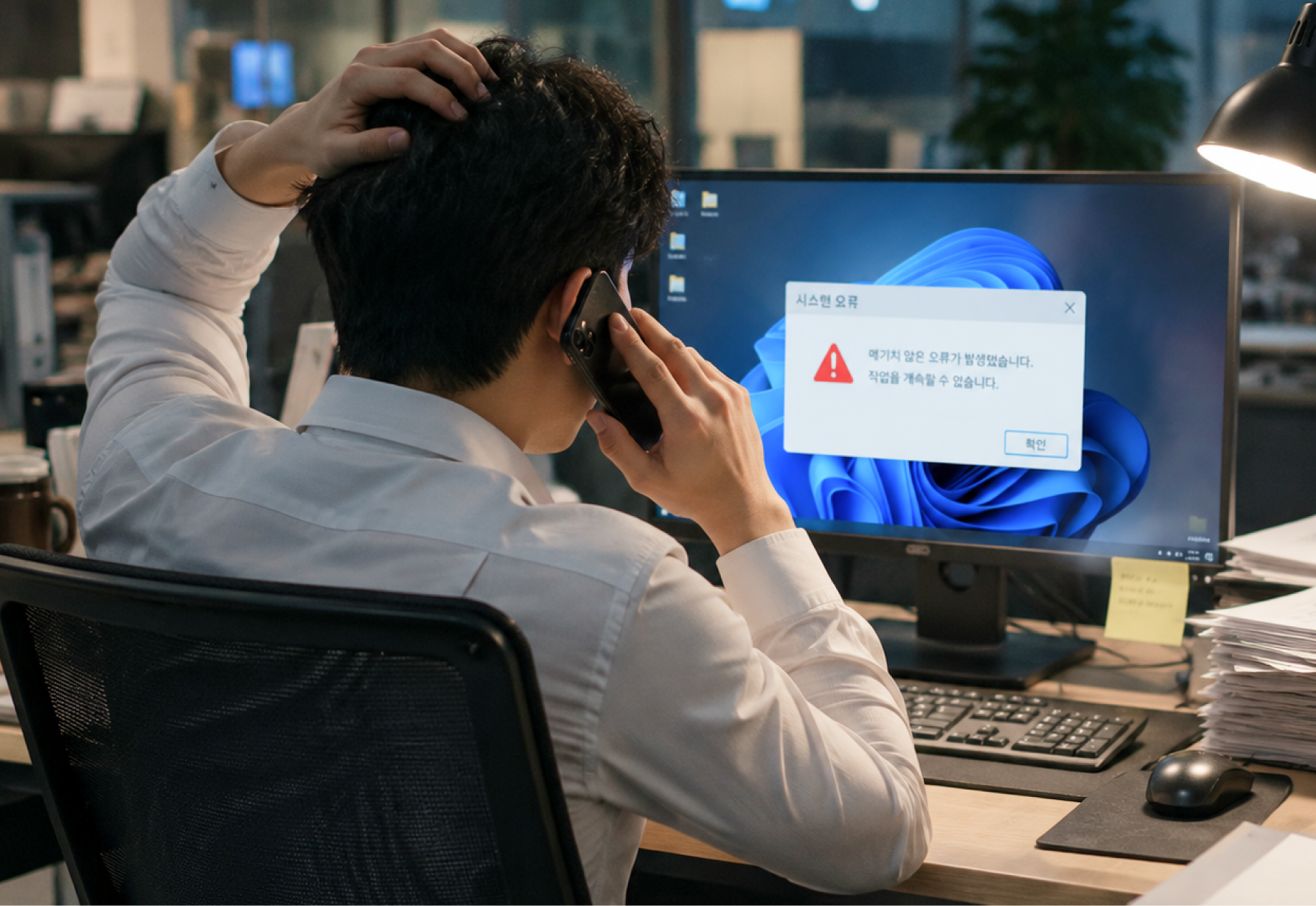
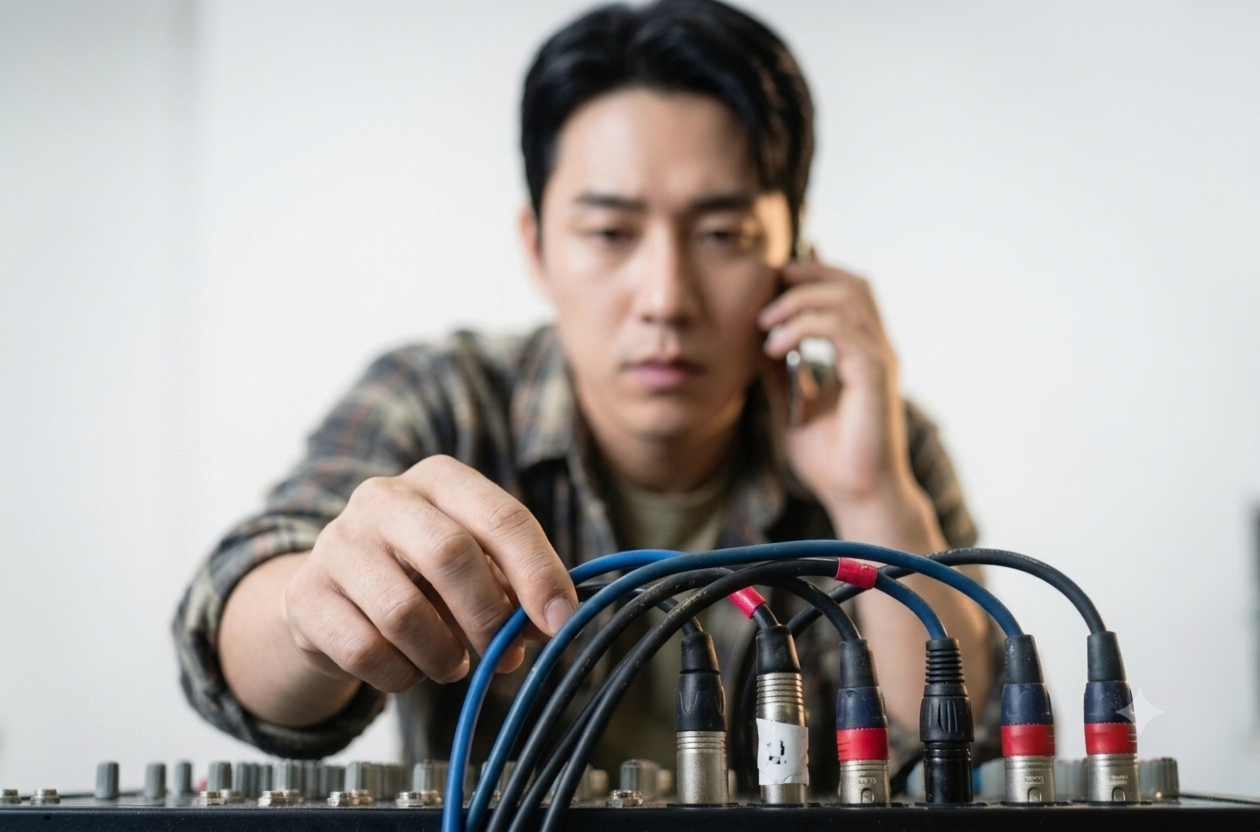
Customer requests help

The customer reaches out through the call center or help desk.

When a phone call alone makes the issue hard to grasp or explain, it leads to remote support.

Agent login
Agent
02

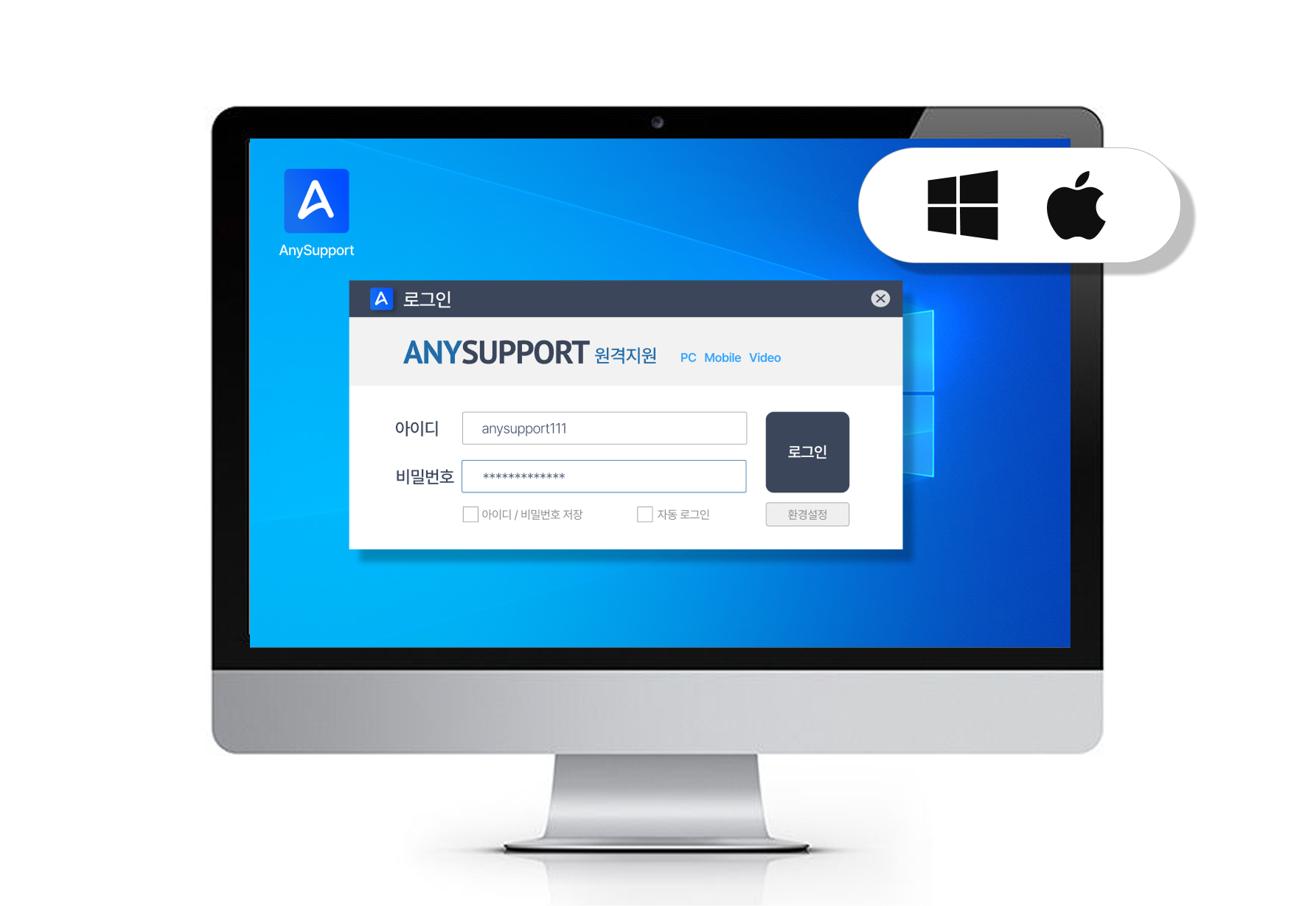
Agent login

Log in via the agent program or the website.

Log in on the website to run the program; on a frequently used PC you can run the installed version directly.

*Windows/Mac, iOS supported

Start a session
Agent
03

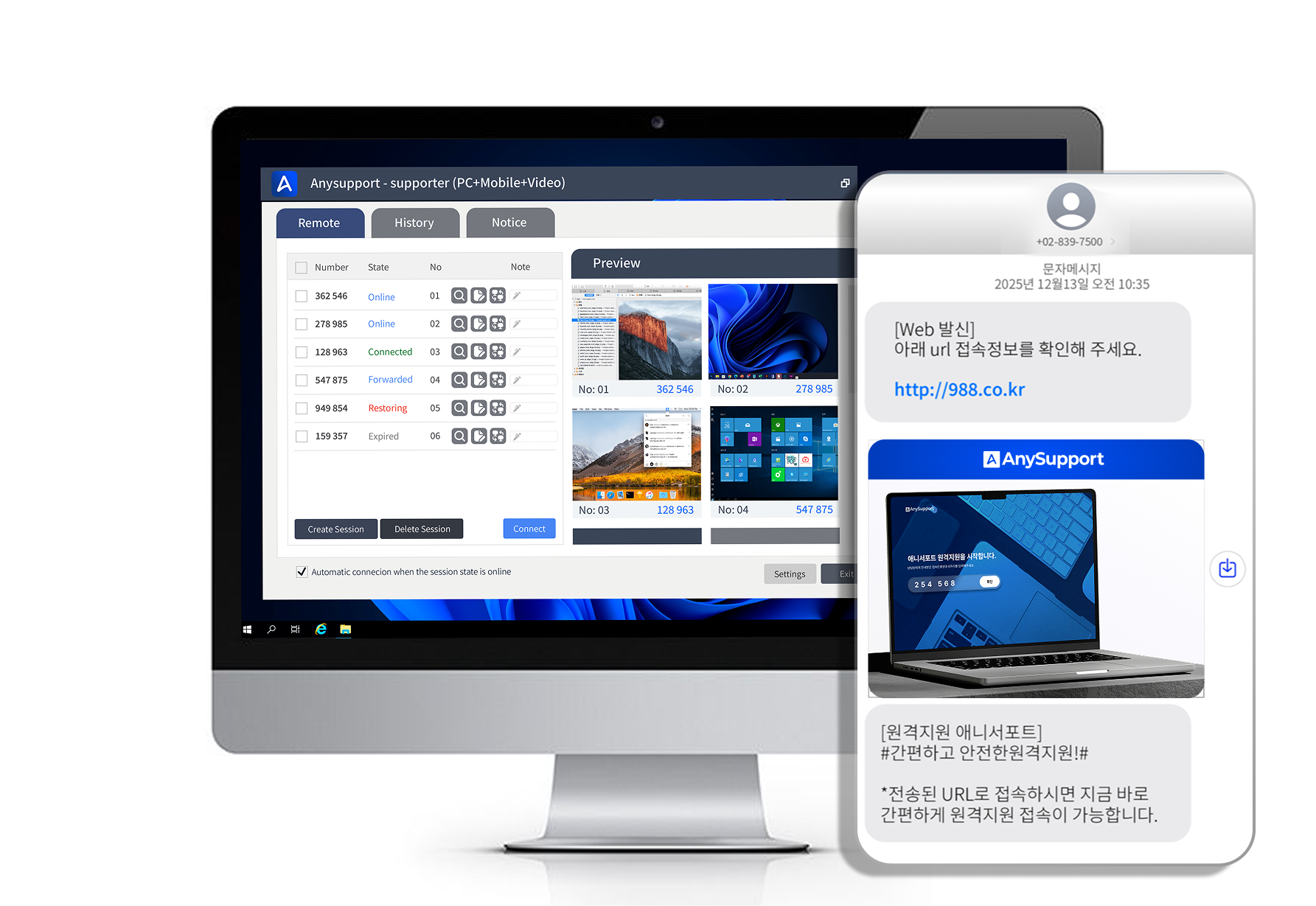
Start a session

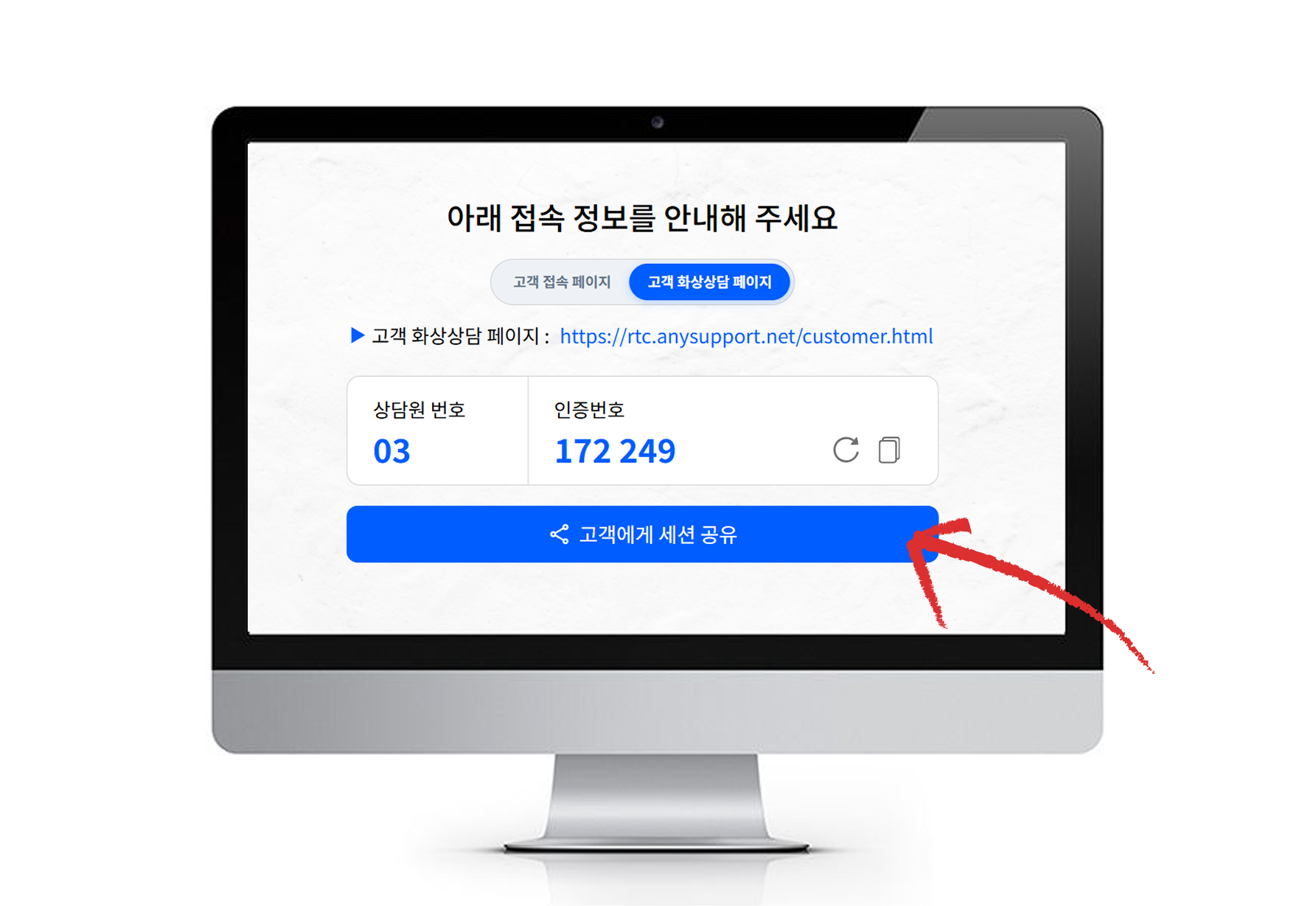
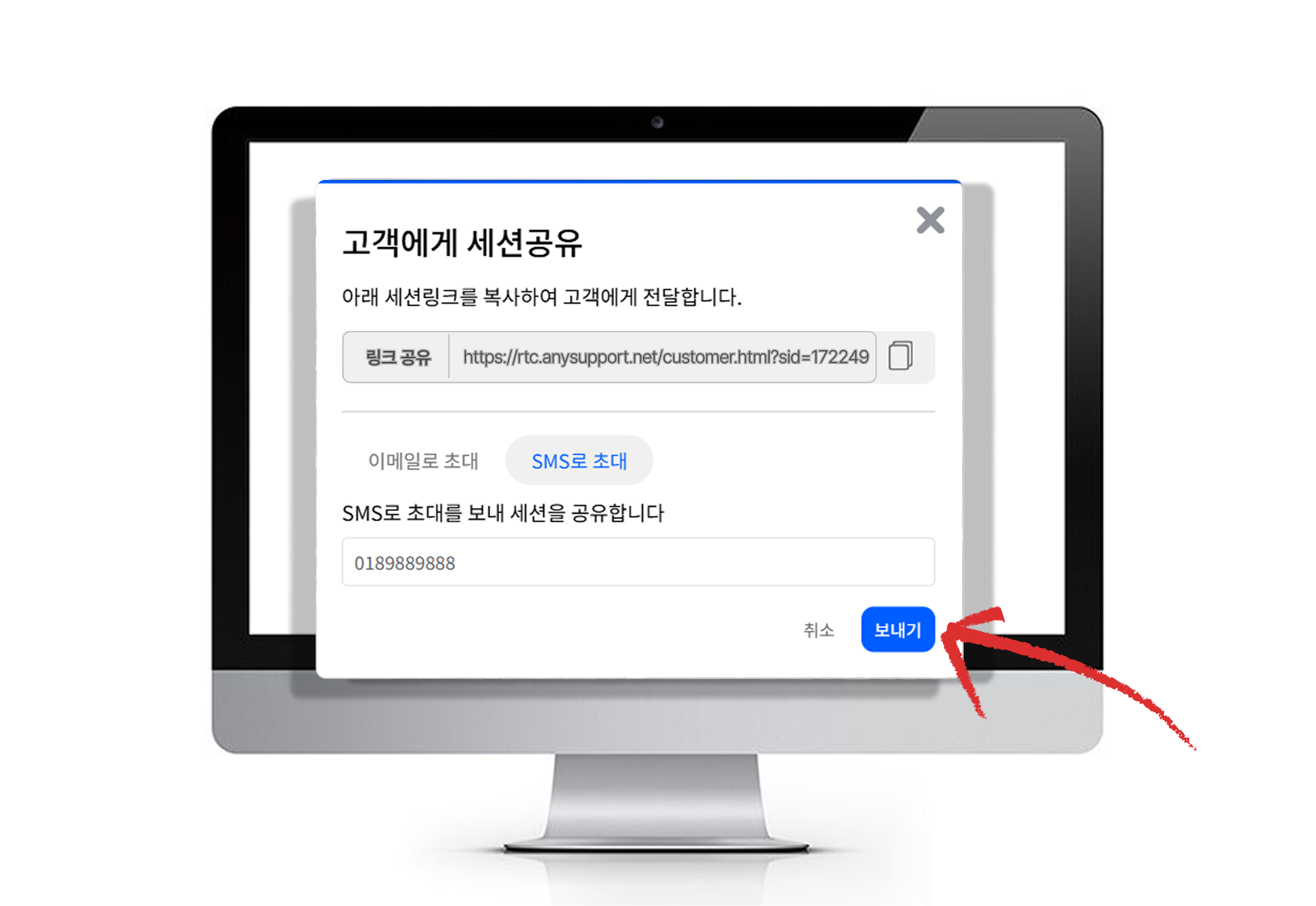
Generate a session number (6-digit access code) and send it to the customer with the access page URL.

The access code is a one-time number issued per session, safely verifying the customer.

Open the access page
Customer
04

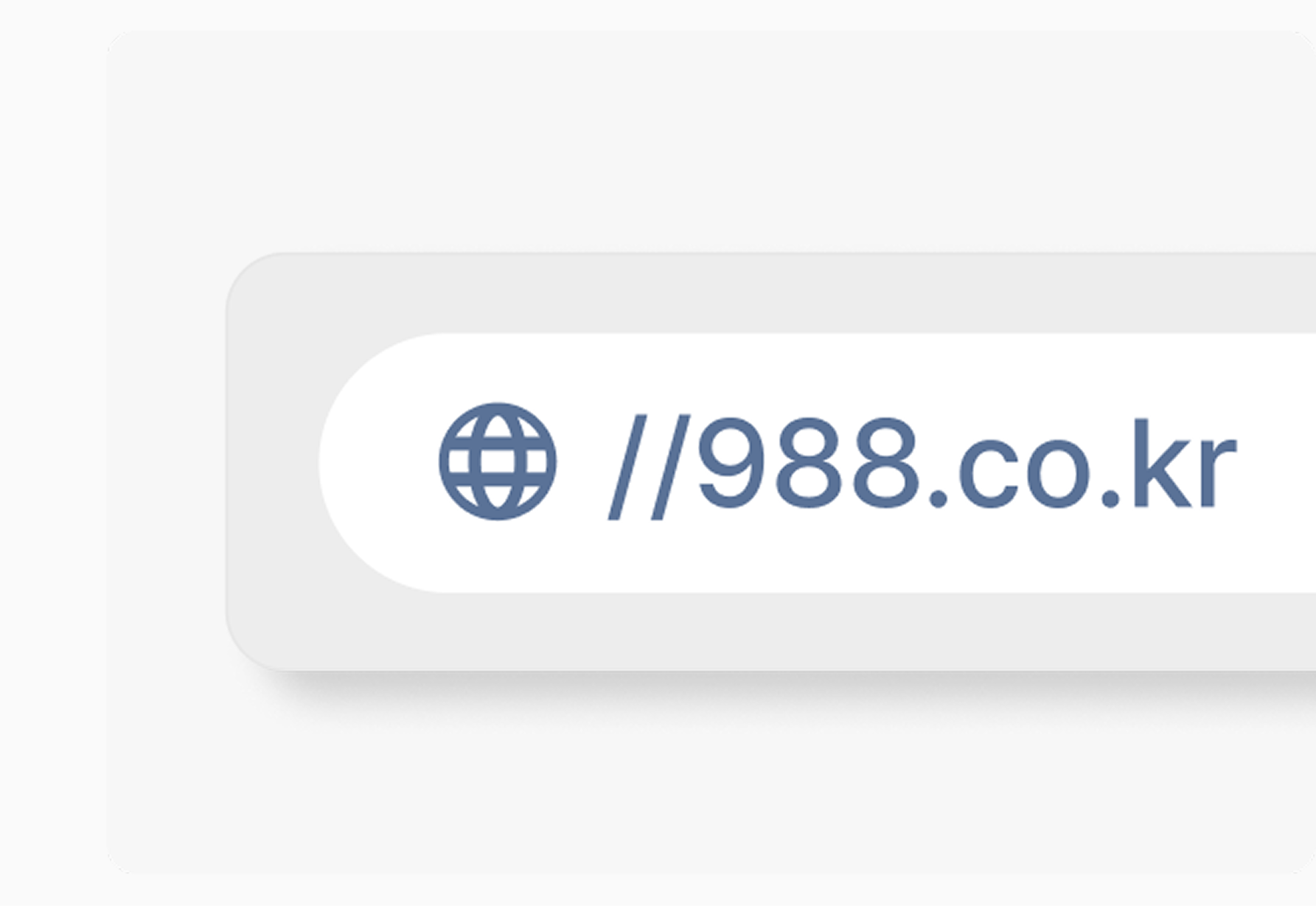
Open the access page

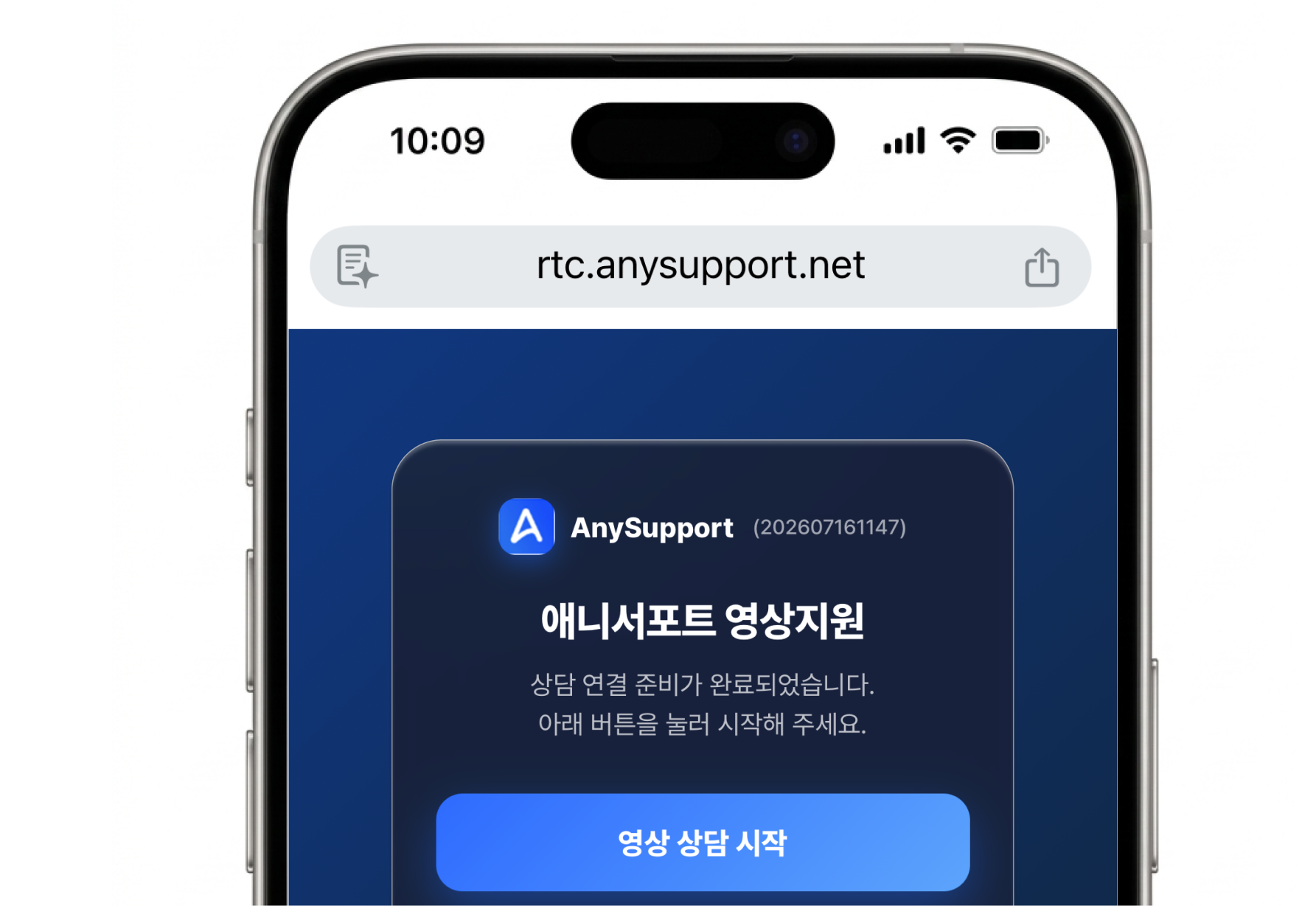
Open a web browser and go to 988.co.kr.

No installation needed—just type the access page address into the browser's address bar.

Enter the access code
Customer
05

Enter the access code

Enter the 6-digit code received from the agent.

After entering the code, a small connection module runs once and the connection is ready.

Start remote control
Agent
06

Start remote control

Connect to the customer's PC and provide remote support.

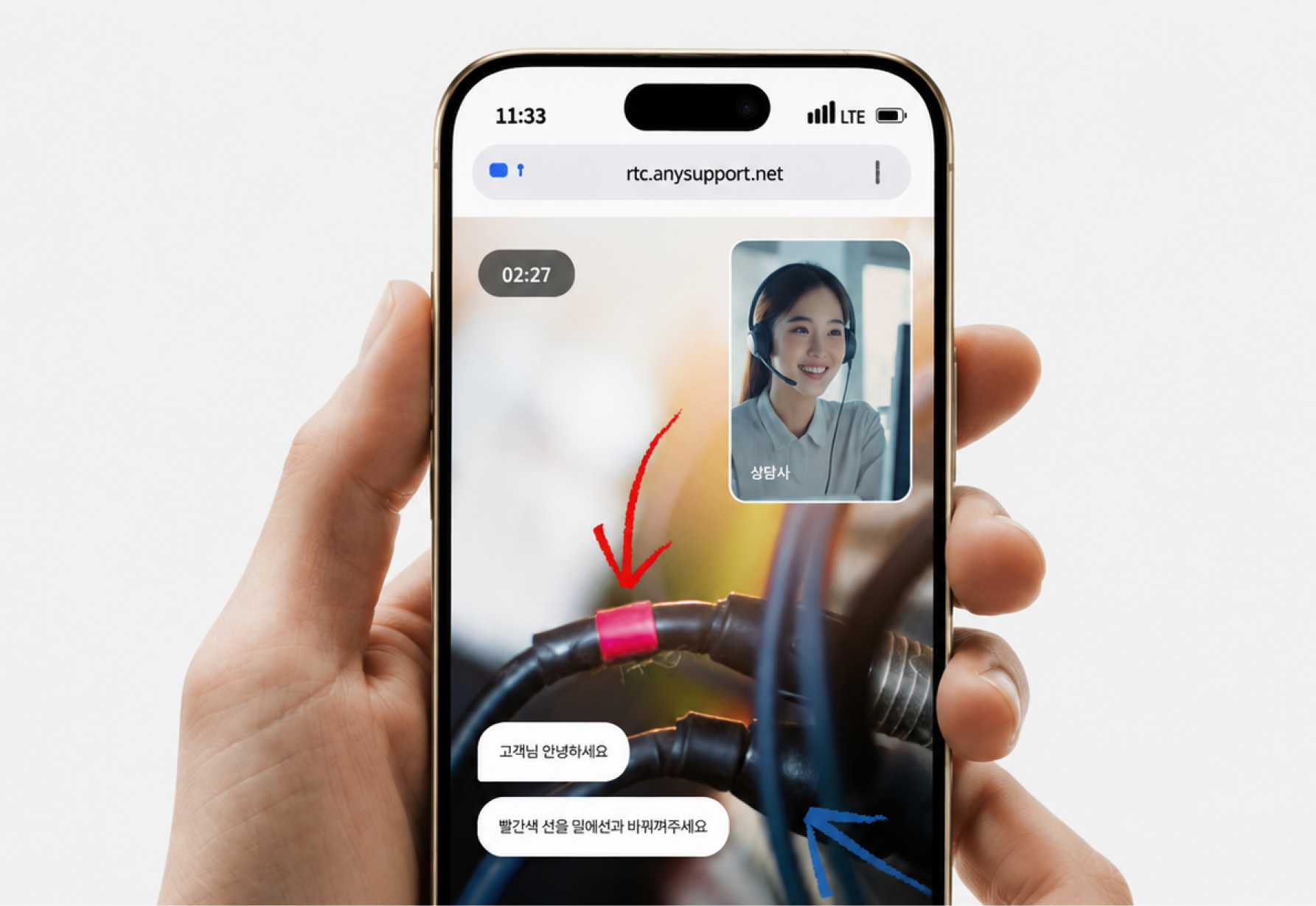
Resolve the issue directly with screen sharing, file transfer, chat, and recording; the connection ends automatically when finished.

Try It Right Now

From install to your first remote session, try it free for 15 days.

Start 15-Day Free Trial
Blog YouTube Chat
15-Day Free Trial